
The Wallet Pass Creator for Apple Wallet and Google Wallet
A wallet pass creator that lets you design your own branded pass, preview it as you build it and share it by link or QR code.
Add your logo, artwork and color on one screen, with previews of your pass, its sign-up page and a notification beside the form. When it’s ready, one tap from your link or QR code adds it to your audience’s wallet, with no app to download and nothing to fill in.
14-day money-back guarantee. No contracts. Cancel any time.
See a live pass and talk through your plans. For businesses and creators planning a wallet pass.
 Or point your phone camera here to add our pass to your wallet.
“Now we can reach people when we want, and announce our brand sponsors and celebrity chefs directly, which has had an instant uplift on sales.”
Bev Channell, Festival of Food & Drink
Pass creation: how to create a wallet pass
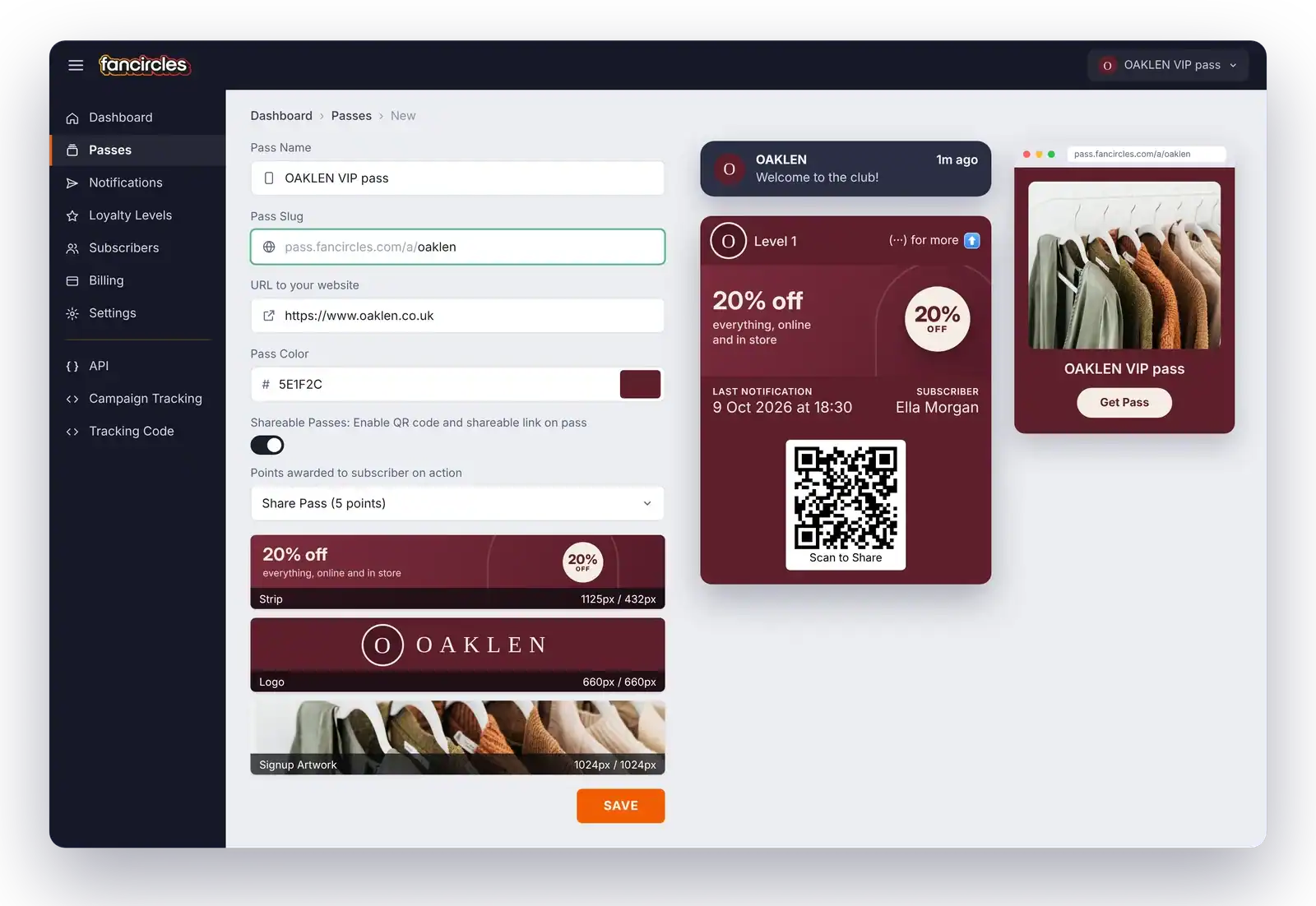
You create your pass on one screen in your PushPass dashboard, and the previews beside the form show the result as you go. There’s no code to write and no app to build.
You can create passes for VIP memberships with exclusive perks, loyalty cards that track points and progress, tiered levels such as Bronze, Silver and Gold, subscription access and club memberships.
Choose how people join
1-tap add puts the pass straight into the wallet, and you can ask for details later. Details first asks for a name and email address before the pass is added.
Name your pass and choose its link
Give your pass a name and a short slug. The slug becomes your pass’s own address, such as pass.fancircles.com/a/oaklen, and that’s the link you share.
Set your pass color
Enter your brand color as a hex code and the pass takes it on, with your logo and artwork on top.
Switch on sharing
Turn on Shareable Passes and a Scan to Share QR code appears on the front of the pass. Then choose the loyalty action a share earns, such as Share Pass for 5 points.
Upload your logo and artwork, then save
Add your logo, the strip artwork across the front and the artwork for the sign-up page, cropping each one in the dashboard. Confirm the compliance checklist, save, and your link and QR code are ready to share.
The Pass Designer: What Goes on Your Wallet Pass
The parts you design, and the parts that fill themselves in
This example is an Apple Wallet pass. A Google Wallet pass is laid out a little differently but holds the same information. You design the logo, artwork and color, and PushPass fills in each pass holder’s level, name and latest notification for you.
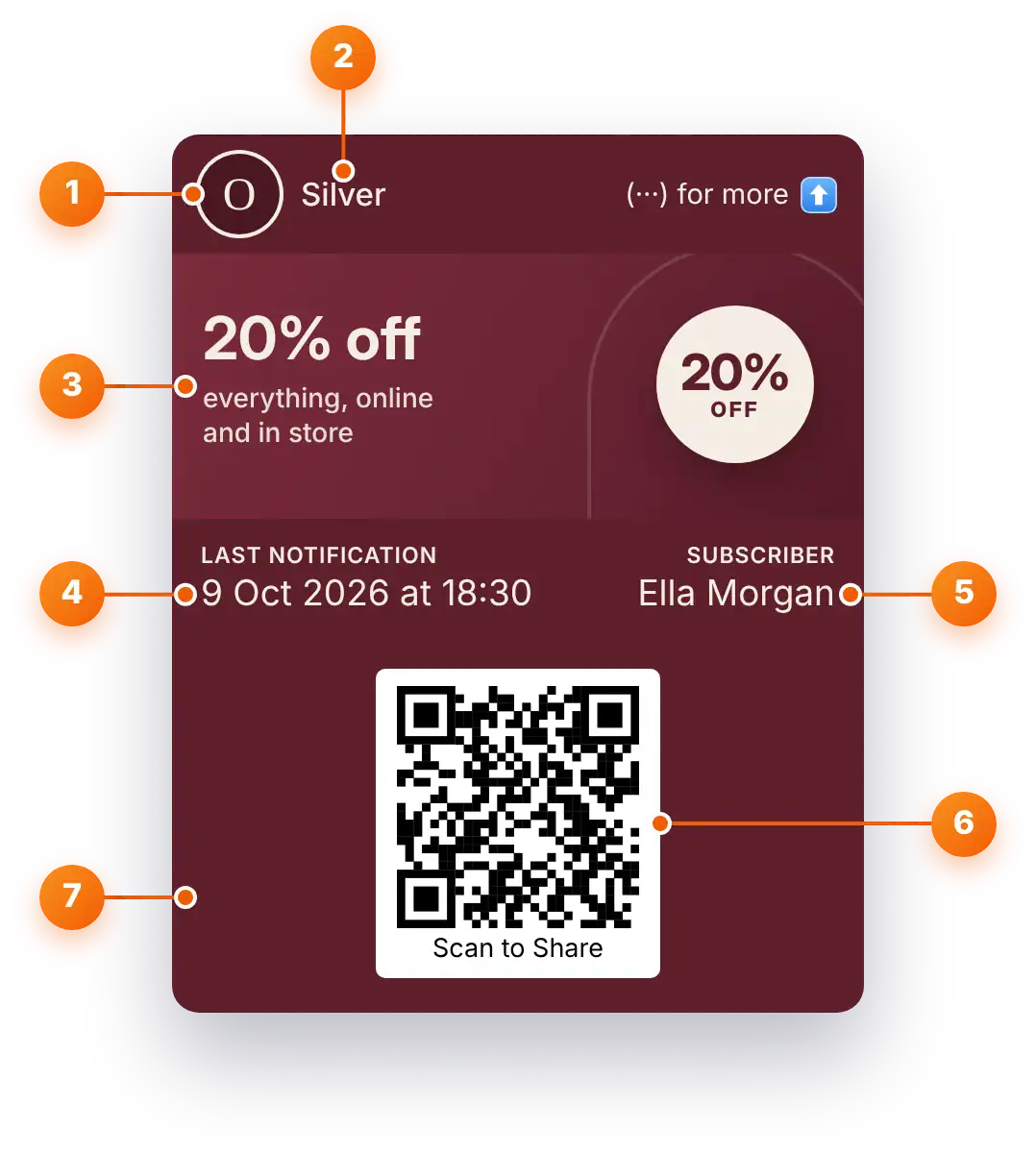
Your logo
Top left of the pass, uploaded at 660 x 660 px.
Loyalty level
Each pass holder’s level, which changes as they earn points.
Strip artwork
Across the front at 1125 x 432 px, ready for each offer, season or launch.
Last notification
The date and time of the latest notification you sent.
Subscriber
The pass holder’s name, once they’ve given it.
Scan to Share
A QR code a friend scans to add the same pass, switched on or off by you.
Pass color
Your brand color behind everything, set with a hex code.
Wallet pass image sizes
Three images make up your pass and its sign-up page. Start with images at least this size, then crop each one in the dashboard.
| Image | Size | Where it appears |
|---|---|---|
| Logo | 660 x 660 px | At the top of the pass |
| Strip artwork | 1125 x 432 px | Across the front of the pass |
| Sign-up artwork | 1024 x 1024 px | On your pass's sign-up page, above the Get Pass button |
The cropper tells you when an image is too small
If the area you select is smaller than recommended, you’ll see a warning before you save, because the image would look blurry on high-resolution screens.
Keep the words on your strip short
The strip is read on a phone, so keep any text on it short and large, such as an offer or the name of a new collection.
One Pass for Apple Wallet and Google Wallet
You design your pass once. The same link and the same QR code add it to Apple Wallet on iPhone and Google Wallet on Android, so there’s never a second version to build. Each wallet lays the pass out in its own way, with the same information on both.
One design
Your logo, artwork and color, set once and shown in both wallets.
One link and one QR code
Share them anywhere, and each phone opens the wallet it already has.
Both wallets in your dashboard
See how many passes were added to Apple Wallet and how many to Google Wallet, side by side.
Kept up to date
We update PushPass as Apple Wallet and Google Wallet change, so your pass keeps up with the latest features of both.
Change Your Pass Whenever You Like
Save new artwork once, and every pass in every wallet updates
Change the artwork, color or offer and save. Every pass already in people’s wallets updates within seconds, with nothing for them to do and nothing for you to resend.
Use it for a weekend offer, a new season or a launch. Your pass stays in the wallet between notifications, so a fresh design gives people a reason to look again.
- Change the artwork, color or offer at any time
- Every pass already added updates within seconds
- Nothing for your audience to do

After You Create Your Wallet Pass
Once your pass is in people’s wallets, the same dashboard lets you reach them, reward them and see what it brings in. Everything runs on our wallet pass platform, from the pass itself to your notifications and results.
Reach the lock screen
Send a notification to everyone, one loyalty level or one person, and it appears on their lock screen. See how our push notification platform works.
Reward more than purchases
Name your levels, choose the actions that earn points and show each pass holder’s level on the front of their pass, all part of our digital loyalty card platform.
Let pass holders sign up friends
A friend scans the code on someone’s pass and adds the same pass in one tap. The person who shared can earn points for every friend who joins.
See what your pass brings in
Track passes added by wallet, country, city and campaign, clicks on every notification’s link and the sales that follow once our tracking snippet is on your order confirmation page.
Before Your Pass Goes Live
The Wallet Pass Compliance Checklist
Every pass carries a brand’s name and logo, so before a pass is created you confirm four things. These declarations form part of our Terms and Conditions.
If you’re an agency creating passes for clients, you’ll need each client’s authority to use their brand, and the checklist asks you to confirm it for every pass.
Wallet Pass Compliance Checklist
I represent the brand owner or have their authority to create this pass.
I have the legal right to use the logos and other intellectual property on this pass.
The details on this pass are accurate and don’t mislead anyone or impersonate another brand.
I understand that failing to meet these terms may mean my account is suspended or closed without a refund.
Brands using PushPass
“The brilliance of FanCircles wallet pass is it’s so simple for our visitors to signup on-site. Now we can reach people when we want, and announce our brand sponsors and celebrity chefs directly, which has had an instant uplift on sales.”
Bev Channell
Festival of Food & Drink
“Students don’t often communicate by emails, so this has been a lifeline to us. We’ve built brand loyalty and virality with the ability to share our pass with our students, and it’s so easy to use.”
Jovi Gill
Varsity Student Lets
“FanCircles customer support is fantastic and the platform is so easy to use.”
Alex Dillon
Thrive Acquisition
Choose the plan that fits your audience
Pick your plan on the next page. Or add our pass to your own phone first and see exactly what your customers would.
14-day money-back guarantee. No contracts. Cancel any time.
See a live pass and talk through your plans. For businesses and creators planning a wallet pass.
Or point your phone camera here to add our pass to your wallet.Wallet pass creator FAQs
Everything brands ask before they create their first wallet pass.
What is a wallet pass creator?
A wallet pass creator is a tool for designing a pass that people keep in Apple Wallet or Google Wallet, such as a membership, loyalty or VIP pass. PushPass is a wallet pass creator that lets you add your logo, artwork and color on one screen, preview the result and share your pass by link or QR code.
Do I need design or coding skills to create a wallet pass?
No. You upload your images, crop them in the dashboard, enter your brand color and fill in a few fields. There’s no code to write and no app to build.
What image sizes do I need for a wallet pass?
Your logo at 660 x 660 px, strip artwork at 1125 x 432 px and sign-up artwork at 1024 x 1024 px. You crop each one in the dashboard, and the cropper warns you if your selection is too small to look sharp.
Does the same pass work in Apple Wallet and Google Wallet?
Yes. You design one pass, and the same link or QR code adds it to Apple Wallet on iPhone and Google Wallet on Android. Each wallet lays the pass out in its own way, but both hold the same information, and we update PushPass as Apple and Google change their wallets so your pass keeps up with their latest features.
Do people need to download an app to add my pass?
No. Apple Wallet and Google Wallet are already on their phone, and one tap from your link or QR code adds your pass.
Do people have to fill in a form to get my pass?
Not unless you want them to. With 1-tap add, the pass goes straight into the wallet and you can ask for details later. If you’d rather collect a name and email address first, choose Details first and people give them before the pass is added.
Can I change my pass after people have added it?
Yes. Change the artwork, color or offer and save, and every pass already in people’s wallets updates within seconds, with nothing for them to do.
How do I share my wallet pass?
Every pass has its own link and QR code. Put the link wherever people can tap, such as emails, your website and messages, and the QR code wherever they can’t, such as posters, packaging, your counter or a YouTube video watched on the TV. Campaign tracking gives each placement its own link and QR code, so you can see which one brought in the most passes.
Can I send notifications to people who add my pass?
Yes. Send to everyone, to one loyalty level or to a single person. Each one can link wherever you choose. See how our push notification platform works.
Can my pass reward loyalty?
Yes. You name your loyalty levels and choose the actions that earn points, and each pass holder’s level shows on the front of their pass. Our digital loyalty card platform page explains how it works.
Can an agency create passes for several clients?
Yes. One account can run a separate branded pass for each client, and you switch between them in the dashboard. You’ll need each client’s authority to use their brand, which you confirm in the compliance checklist.
How much does it cost to create a wallet pass?
The wallet pass creator is part of every PushPass plan, and each plan covers one branded pass. Pricing grows with the number of people who hold your pass, with no per-notification fees. See our PushPass pricing.
Who owns the data, and is PushPass GDPR compliant?
Your pass holders are your audience, and you can export your data at any time. Yes, PushPass is GDPR compliant. Pass holders can remove your pass or switch off notifications whenever they like.